
Note: This is the Preview version of the Visual Studio plugin.
Effortlessly create new docs that interact and are coupled directly with code, without switching to a separate tool
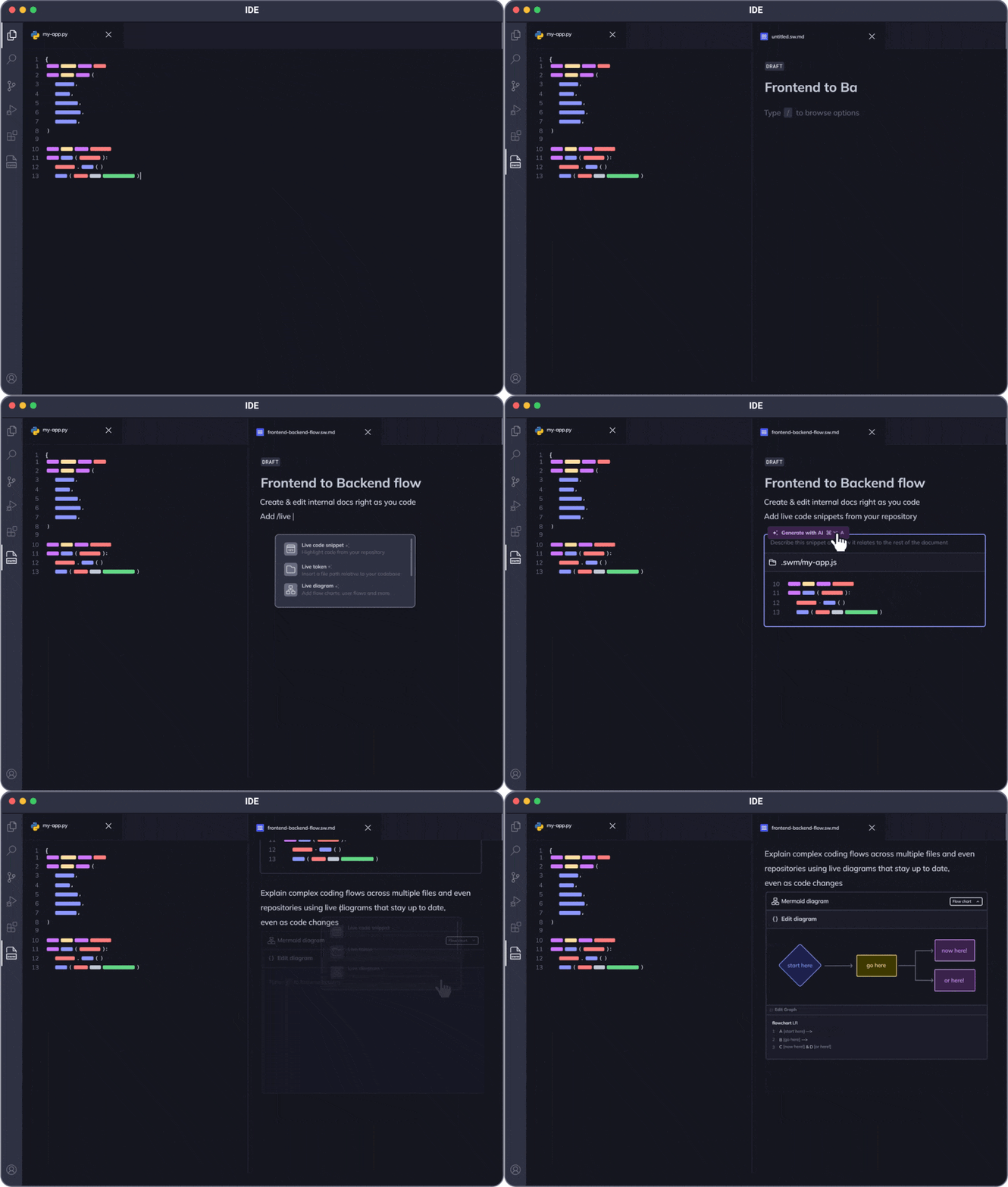
Step 1: Open a document
To create a new document, click on the "+" button in the Swimm panel. You can choose from several document types:
- Document - A general purpose document
- Snippets2doc - Convert code snippets into documentation
- Branch2doc - Create documentation for specific branches
- File2doc - Generate documentation for entire files
Step 2: Edit your document
After opening a document, explore Swimm's slash command (/). Once you type /, Swimm will provide you with various Markdown options, code snippets, Smart Tokens, paths and more.
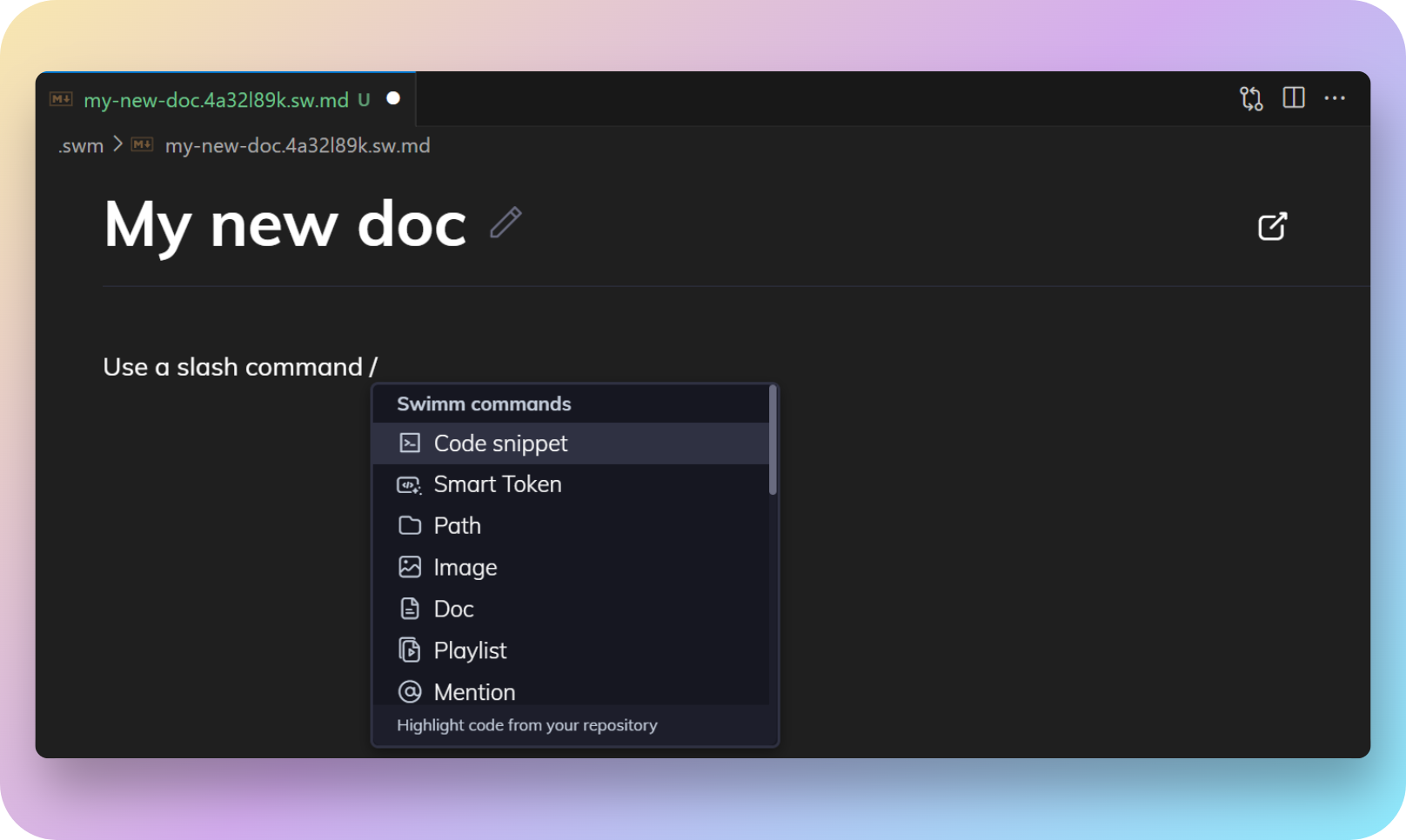
Step 3: Add code snippets
- Select
/Code snippetfrom the slash command options. - Swimm will prompt you to search for a file and select some code.
- Highlight the lines of code you want to include in the document. These lines will appear in your Swimm document, ready to be added.
- Snippets have an optional description. Note that this description will appear alongside the Swimm icon next to your code. A well-thought comment can provide good context for the readers of the code.
Step 4: Highlight code elements
Explain your code snippets and highlight key elements such as classes, variables, or methods using Swimm's Smart Tokens.
- Add a Smart Token using the command
/Smart Tokenand select it from the dropdown, or type backtick`. - Type the value your want to add as a Smart Token, click on it and confirm.
If you cannot find the token you were looking for, check out our advanced token search for Smart Tokens.
Step 5: Save and commit your document
Once you're done with the document, save the file and close it.
Since Swimm documents are Markdown files, they can be committed and pushed with your code changes. This ensures that your team has access to up-to-date documentation.
This document is automatically kept up to date using Swimm.
Comments
0 comments
Please sign in to leave a comment.